Video creation
The video workspace focuses on generating motion clips from text prompts using models exposed through AKOBOT’s registry. This document describes the primary text-to-video flow, batch quantity where available, and how to manage outputs—suitable for producers who need a written runbook, not only UI labels.
Audience — Video producers, social teams, and technical users who run text-to-video jobs inside the AKOBOT application.
In this article
- Entry points and layout of the video tools
- Text-to-video workflow and optional batch generation
- Model selection and prompt enhancement
- Playback, export, and linking to history and Explore
- Operational limitations and troubleshooting
Prerequisites
- Signed-in session with sufficient credits for the selected video model.
- Stable network: video jobs are heavier than images and may take longer to complete or stream for preview.
- Understanding that additional modalities (e.g. video-to-video) appear only when enabled in your product build.
Accessing video tools
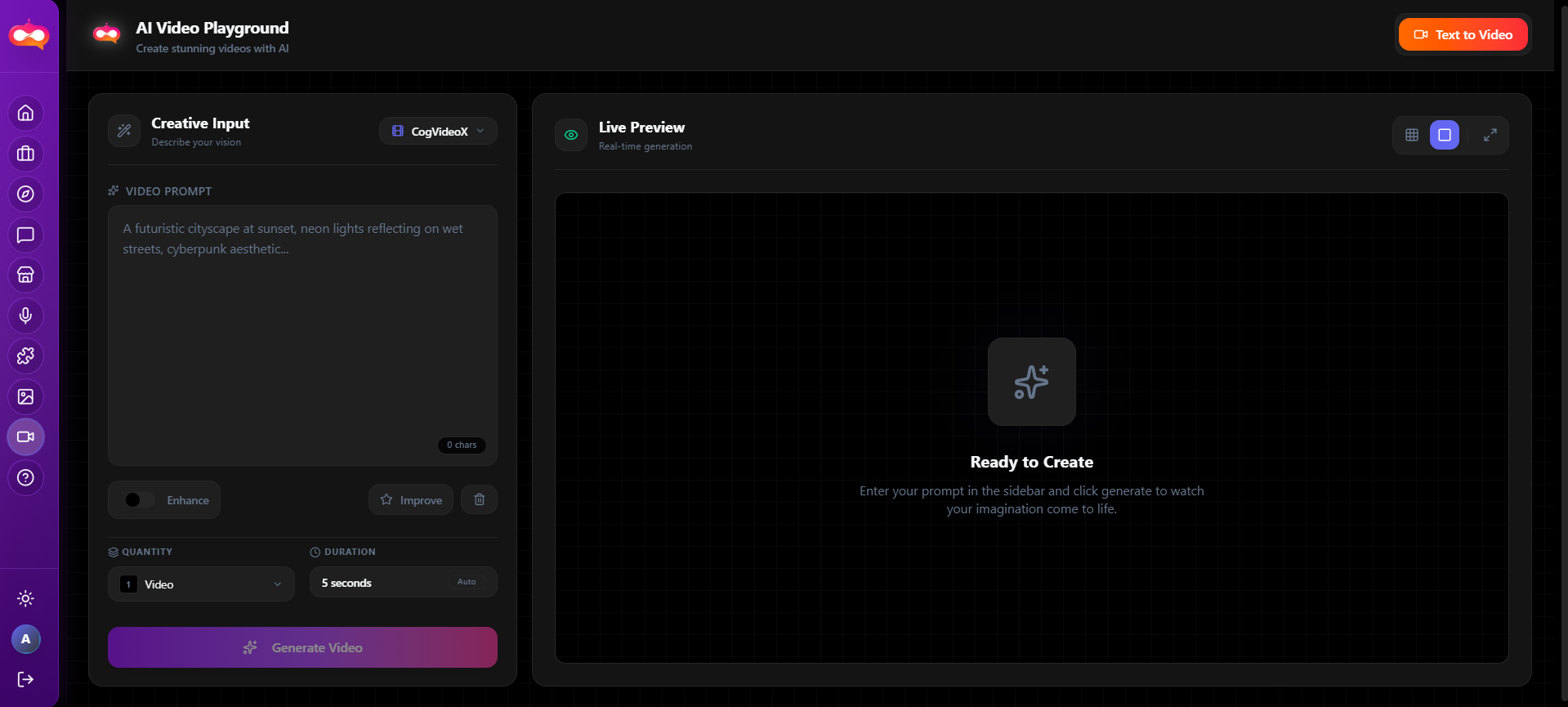
Open Video tools from the dashboard or tools navigation. The page is organized around a mode selector (typically Text to Video as the default active tab), a model picker, a prompt area, and generation controls including quantity when the UI offers multiple outputs per run.
Text-to-video generation
Text to Video is the primary supported path: you describe scene, motion, camera, and style in natural language, select a video-capable model, and submit. The system returns one or more clips depending on quantity settings.
Prompt structure that works well
- Establish the shot: wide / close-up, subject, environment.
- Motion: what moves (subject, camera pan, particles).
- Style & lighting: cinematic, anime, documentary, etc.
- Duration constraints: if the model or UI exposes length, align prompt complexity with it.
Prompt enhancement
Models and quantity
Models are populated from the registry when available; otherwise a curated fallback list may display. Each entry typically includes a short description or cost hint. When quantity is configurable, you can request multiple variants in one submission—useful for A/B comparisons; each unit may debit credits separately per your plan.
| Control | Purpose |
|---|---|
| Model | Determines aesthetics, resolution limits, and cost profile. |
| Quantity / batch | Generates parallel variants when supported; confirm credit impact. |
| Enhancement toggles | Optional rewriting or expansion of your prompt before the job runs. |
After generation
When the job completes, preview playback in the tool. Use download or share actions if provided. For long-term retrieval, rely on Creation history and your dashboard gallery. For creative reference, browse Explore to compare styles and prompts used in the community.
Future modalities
Modes such as Video to Video or enhancement pipelines may ship as additional tabs. When they appear, read the in-app labels for required inputs (e.g. source clip upload). This documentation will remain accurate for the text-to-video baseline; extend your internal runbooks when new tabs roll out.
Troubleshooting
| Symptom | Check |
|---|---|
| Stuck or spinning for a long time | Network; server load; very long prompts. Wait or cancel per UI. |
| Playback fails in browser | Codec or CDN issue; try download; different browser. |
| All models show fallback names only | Registry unreachable—retry later or contact support. |