Voice transcription
Standalone transcription converts speech to text outside of chat: live streaming from your microphone, batch processing of audio files, or a short in-browser recording. This page documents the three paths, required authentication, and how to manage language and model settings for production-quality notes and compliance-friendly workflows.
Audience — Users who need accurate transcripts for meetings, interviews, dictation, or accessibility—not only chat-based Q&A.
In this article
- Authentication and why a valid access token is required
- Comparison of live, upload, and clip recording flows
- Configurable parameters: language, model, sample rate
- Export, copy, and session hygiene
- Privacy, browser permissions, and troubleshooting
Access and prerequisites
Open Transcription from the dashboard. The service uses your access token from a signed-in session; without it, the client cannot open a secure channel to the transcription backend.
Browser permissions
The three transcription paths
| Method | When to use it | Behavior summary |
|---|---|---|
| Live (microphone stream) | Real-time meetings, dictation, long-form capture. | Interim text while speaking; final segments append to the transcript. Stop the session to close the connection. |
| File upload | Pre-recorded interviews, podcasts, voice memos. | Upload completes; server returns a transcript; text is merged into the editor when done. |
| Record clip | Quick capture without maintaining a long live session. | Browser records audio, then sends it as a file for the same transcription path as upload. |
Live transcription in detail
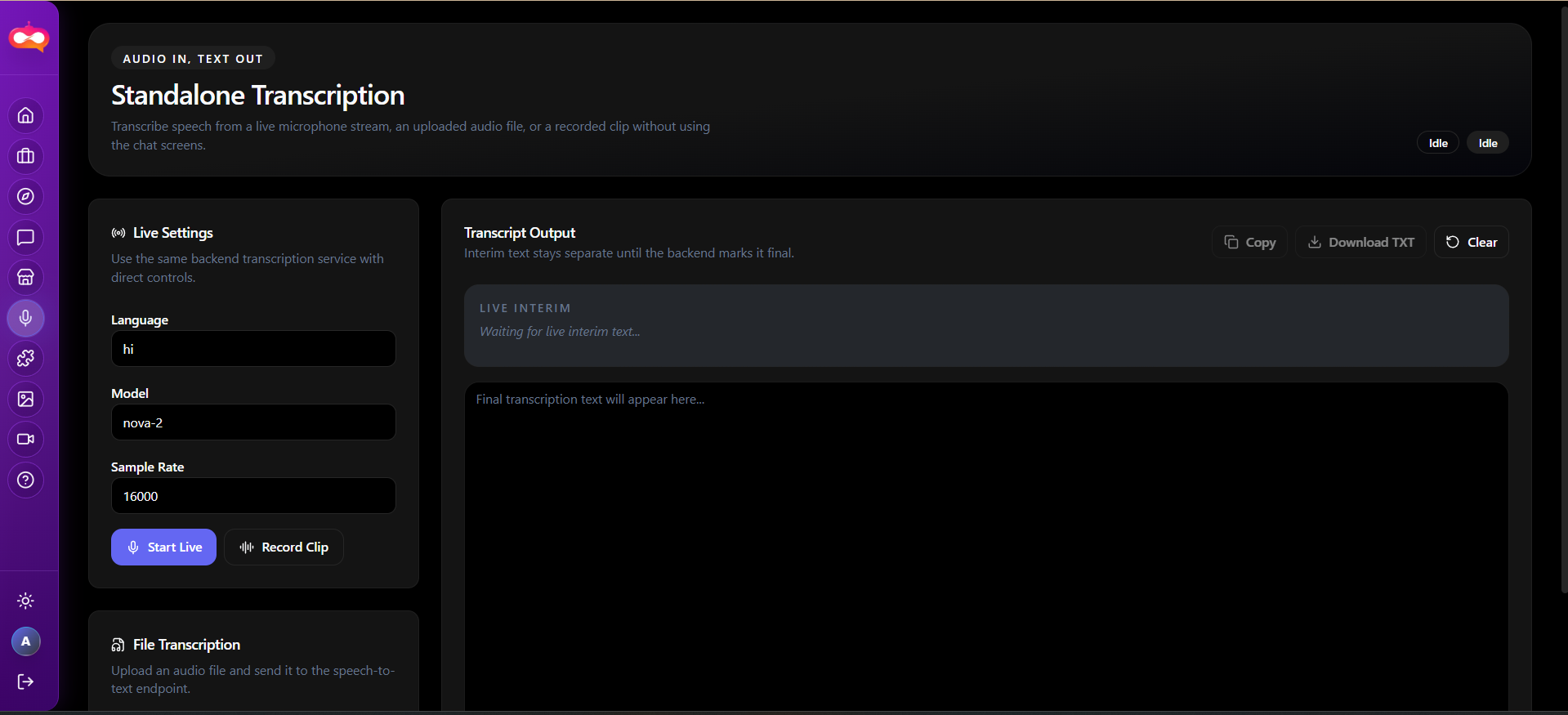
Starting live mode opens a streaming connection. Status indicators (connecting, listening, reconnecting, closed) reflect the gateway state. Interim results may appear while you speak; finalized text is appended to the running document. If the connection drops, the UI may attempt reconnection depending on implementation—watch status messages and restart if the session stays closed.
Operational tips
- Use a quiet environment or directional mic for best accuracy.
- Speak clearly; avoid overlapping speakers if the engine is single-channel.
- End the session explicitly when finished to release the microphone.
Upload and recorded clips
For uploads, choose supported audio formats accepted by the file picker. For in-browser recording, the implementation uses the device’s default input device; stop recording before transcribing so the blob is complete. Both paths run through the same server-side transcription with punctuation and smart formatting when enabled.
Language, model, and audio settings
Before starting, set language, model (for example a Nova-class engine where applicable), and sample rate to match your capture hardware when relevant. Mismatched sample rates can reduce quality; consult your audio engineer for broadcast or music-heavy sources.
Consistency
Working with the transcript
Use Copy to place the full text on the clipboard for email, docs, or tickets. Use Download to save a timestamped plain-text file for archival. Clear the editor between sessions when you need a clean slate; avoid mixing unrelated recordings in one document for audit clarity.
Privacy and data handling
Treat transcripts like any sensitive business record. Follow your company’s retention policy. Do not stream highly confidential content on untrusted networks; use uploads over secure corporate channels when required by policy.
Troubleshooting
| Problem | Remediation |
|---|---|
| Login required / token error | Sign in again; ensure local storage is not cleared aggressively by policy. |
| Microphone not available | Check OS privacy settings; try HTTPS; verify no other app holds the device. |
| Empty or partial transcript | Check language setting; retry with cleaner audio; verify file not corrupted. |
See also
Website & dashboard · Agents (for conversational use cases) · Account & support